Fleet enrollment
Every unit in a production run is flashed with the same firmware image, carrying the same claim token. On first boot a device presents that token and receives a certificate of its own. Your production line writes nothing per device.
The token comes from a provisioning profile: a reusable policy saying which devices may join, whether each one waits for your approval, and which model they are created under. One token for the whole batch is the usual arrangement but giving each unit its own key is also possible.
Create a profile
Open Enrollments and choose New profile.
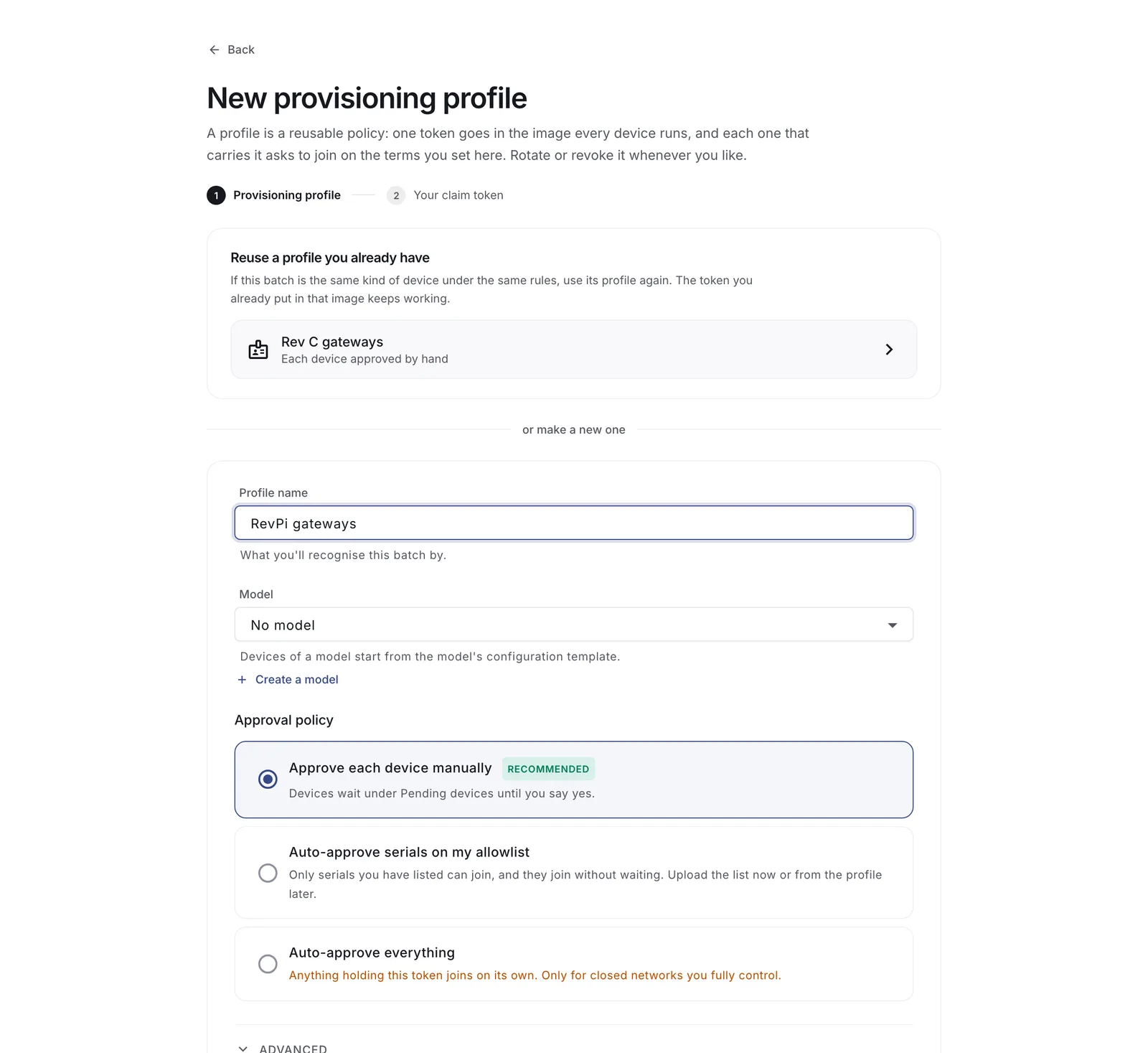
Three decisions.
Model. Devices joining through this profile are created under this model and start from its configuration template. Firmware compatibility and update campaigns are built around models, so setting one now saves work later.
Approval policy.
| Policy | What happens | Use it when |
|---|---|---|
| Approve each device manually | Devices wait in the queue until you admit them | The default. Anything shipping outside your control |
| Auto-approve serials on my allowlist | Only serials you uploaded can join, and they join without waiting | You already track serial numbers in your ERP or MES |
| Auto-approve everything | Anything holding the token joins on its own | Closed networks you fully control, and bench work |
Enrollment quota, under Advanced. A cap on how many devices this profile may admit. Sized to a production batch, it bounds what a leaked token can do.
Shared key or per-device keys
By default a profile mints one claim key for the whole batch. Under Advanced you can switch to per-device derived keys: each device gets its own key (computed from the group key and its serial).
That costs a step on the line and buys two things. A stolen key is worth exactly one device, and Connhex can tell a device recovering its own identity from a second unit holding a copy of the key, which is what lets replacements be admitted automatically.
Choose shared keys unless you already write per-device data at flash time.
Copy the token
The token is shown once, on the screen right after the profile is created. Only a hash of it is stored, so Connhex cannot show it to you again.
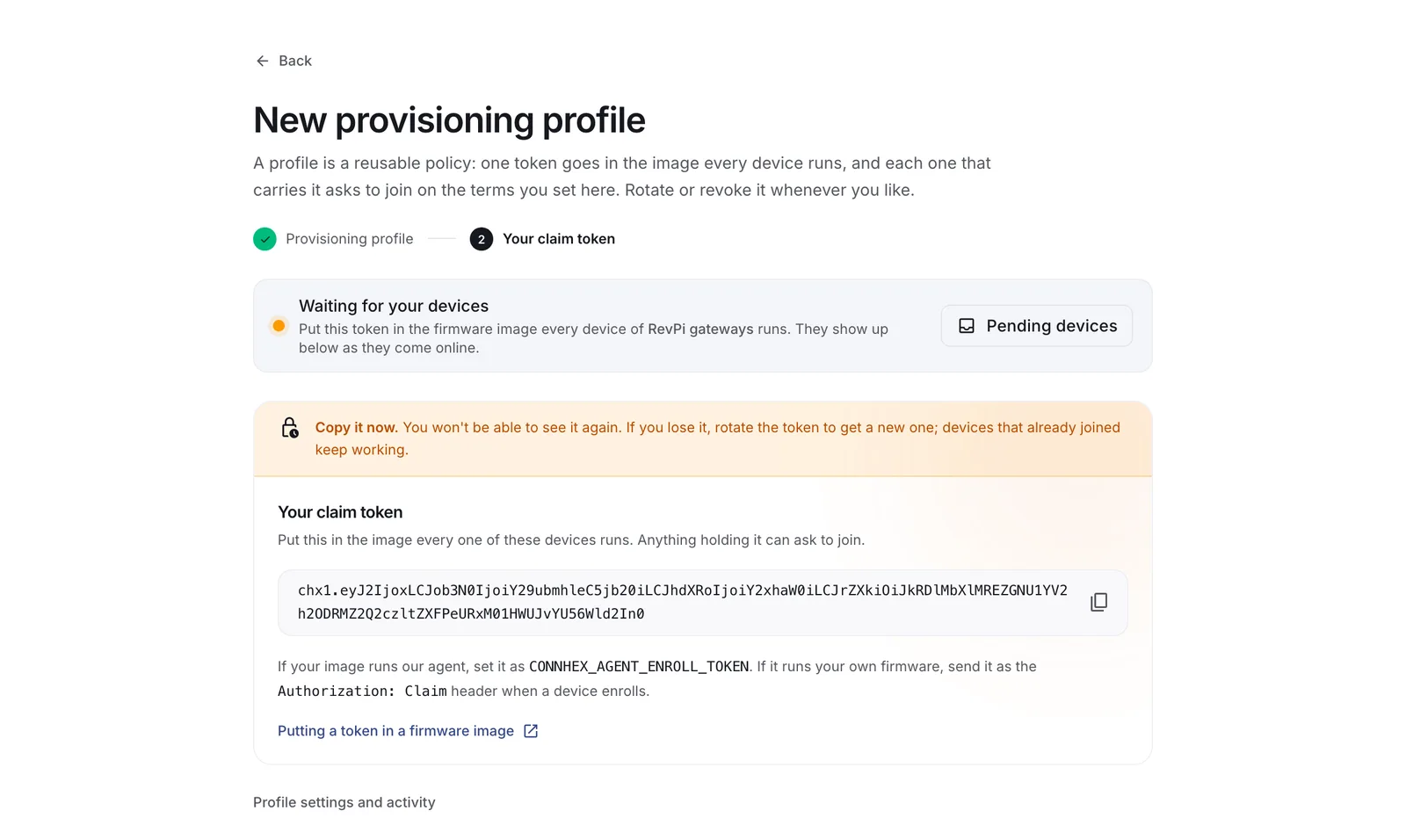
Put it wherever your build picks up its other secrets. It is the same value for every unit in the batch, so it belongs with the image recipe.
If you lose it or it leaks
Rotate the claim key from the profile's page. The new key works immediately and the old one keeps working beside it, so stock already flashed carries on enrolling while new builds move to the new key.
What differs between the two cases is when you retire the old key:
- Lost, with nothing exposed: retire it once the stock carrying it has finished enrolling.
- Leaked: retire it now. Anything still holding it stops being able to join, including your own un-enrolled stock, which then needs reflashing.
Devices that already enrolled are unaffected either way. Their identity is a certificate, and the claim key played no part in it past first boot.
Putting it in your firmware image
With Connhex Edge, set it in the image's environment:
CONNHEX_AGENT_ENROLL_TOKEN=chx1....
For a firmware image that runs SWUpdate without Connhex Edge, a small first-boot unit enrolls the device and writes the updater's configuration from the result.
With your own firmware, the key travels in the enrollment request. See Enrolling your own firmware.
A claim key is a fleet credential: anything holding it can ask to join, within the profile's policy and quota. Keeping a profile to one production batch means a rotation only ever affects stock that has not shipped.
Admit devices
Devices waiting for a decision appear under Enrollments, with what they said about themselves: serial, board, firmware version, when they first asked and when they last checked.
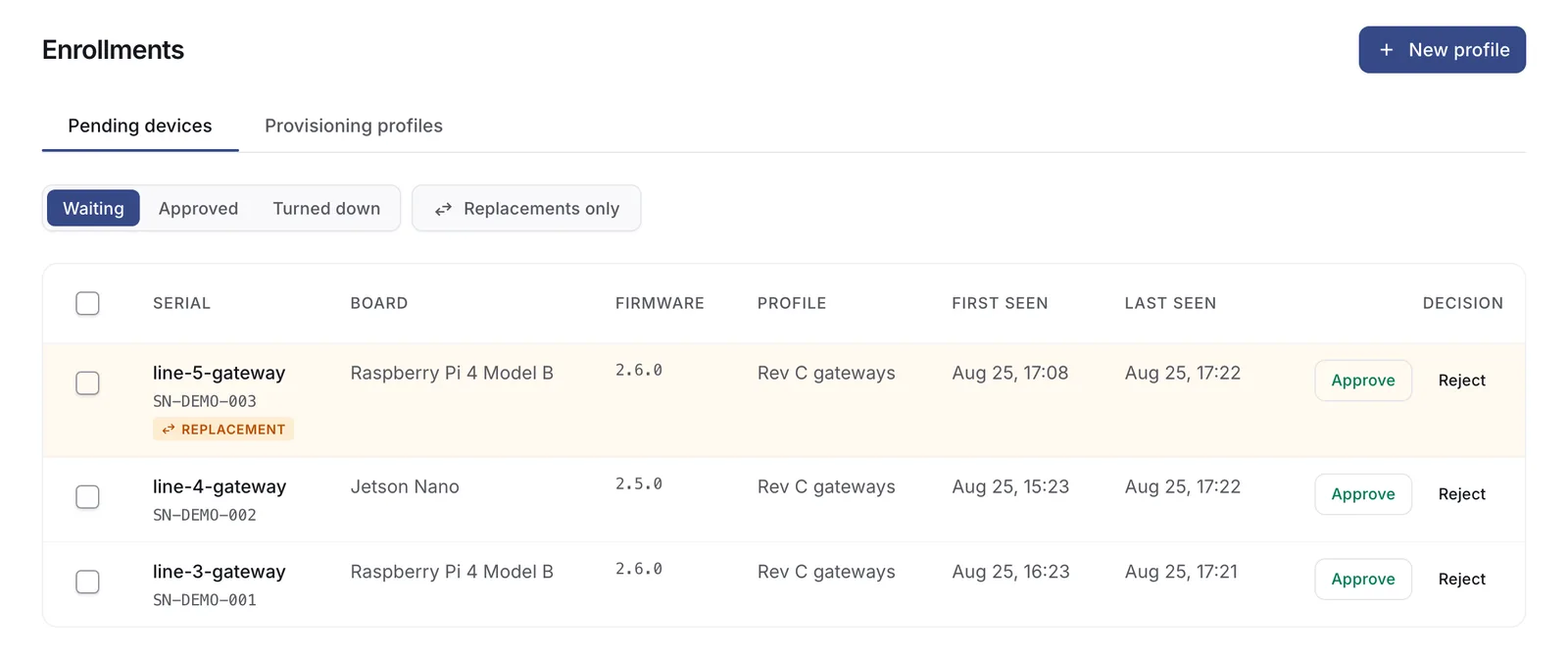
Approve one, or select several and approve them together. Rejecting is final for that serial.
Replacements
A serial Connhex has already seen enrolled and connected comes back marked Replacement. That is either a genuine board swap or someone else holding a copy of your key, so nothing is admitted automatically by default.
Approving a replacement rotates the certificate, the broker password and any update token, cutting off the previous holder the moment you decide, whether or not the new unit ever turns up.
Each profile chooses how to handle them: manual, the default; auto, available on profiles using per-device derived keys, since only those can name the device presenting the key; or deny, which refuses them outright.
Manage a profile
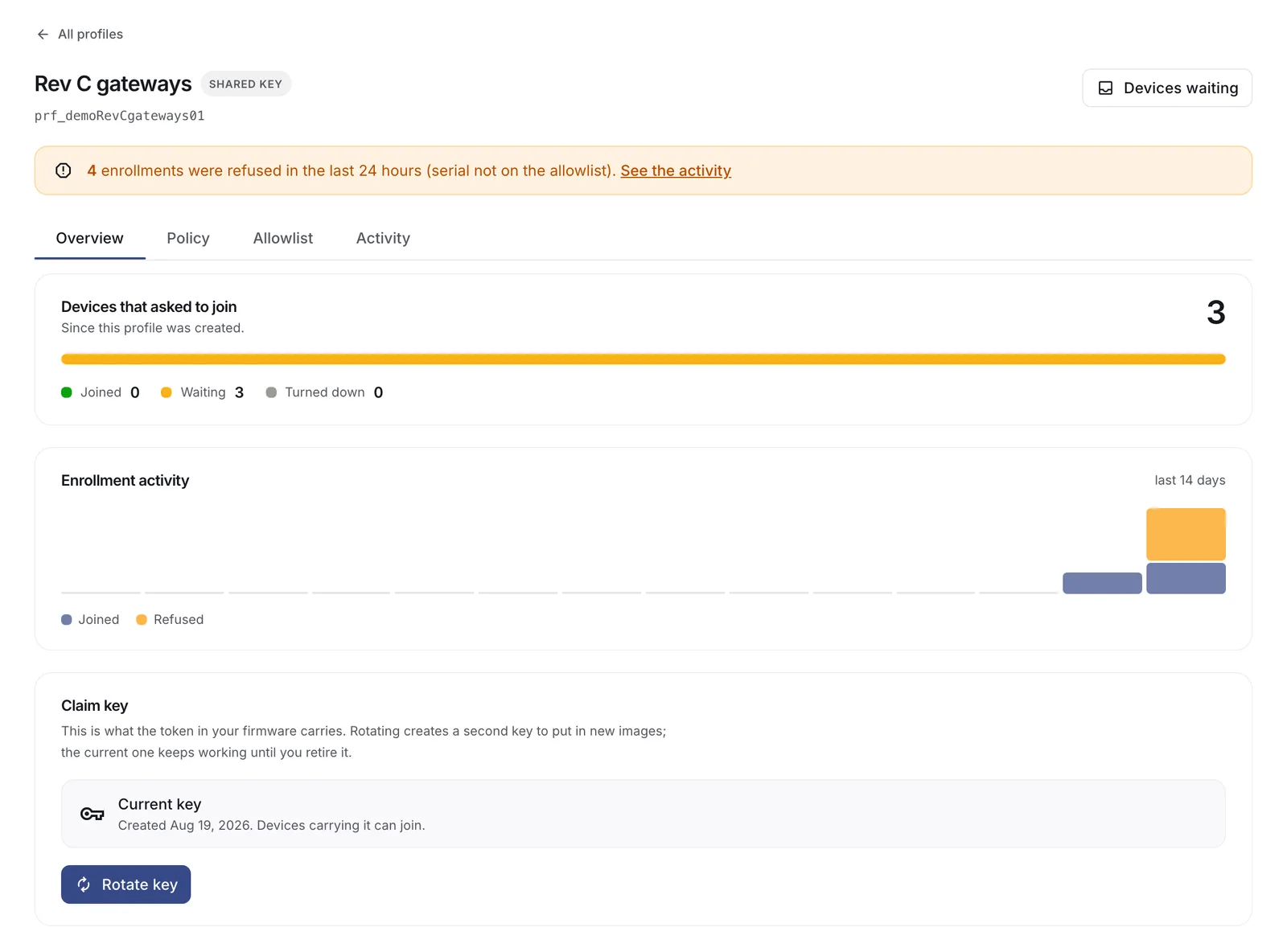
Overview counts devices that joined, are waiting, or were turned down, with the last two weeks of activity. Refused devices are listed here with the reason: serial not on the allowlist, quota exhausted, profile disabled, replacement blocked by policy. Devices themselves are told nothing beyond "no", so this page is where the answer lives.
Allowlist takes serials in bulk, as JSON or CSV, or straight from your existing systems through the API.
Claim key is where you rotate and retire. Size the overlap between the two keys to your inventory turnover.
Disabling a profile stops enrollment under it at once. Devices that already joined carry on regardless: their identity is their certificate, and the claim key plays no part in it.